
How to Use Notion Automations in 2026 to Save Leads Quickly
Notion automations can't capture leads from a webpage, need Plus to create, and have no Google Calendar sync. See the real triggers, limits, and pricing.
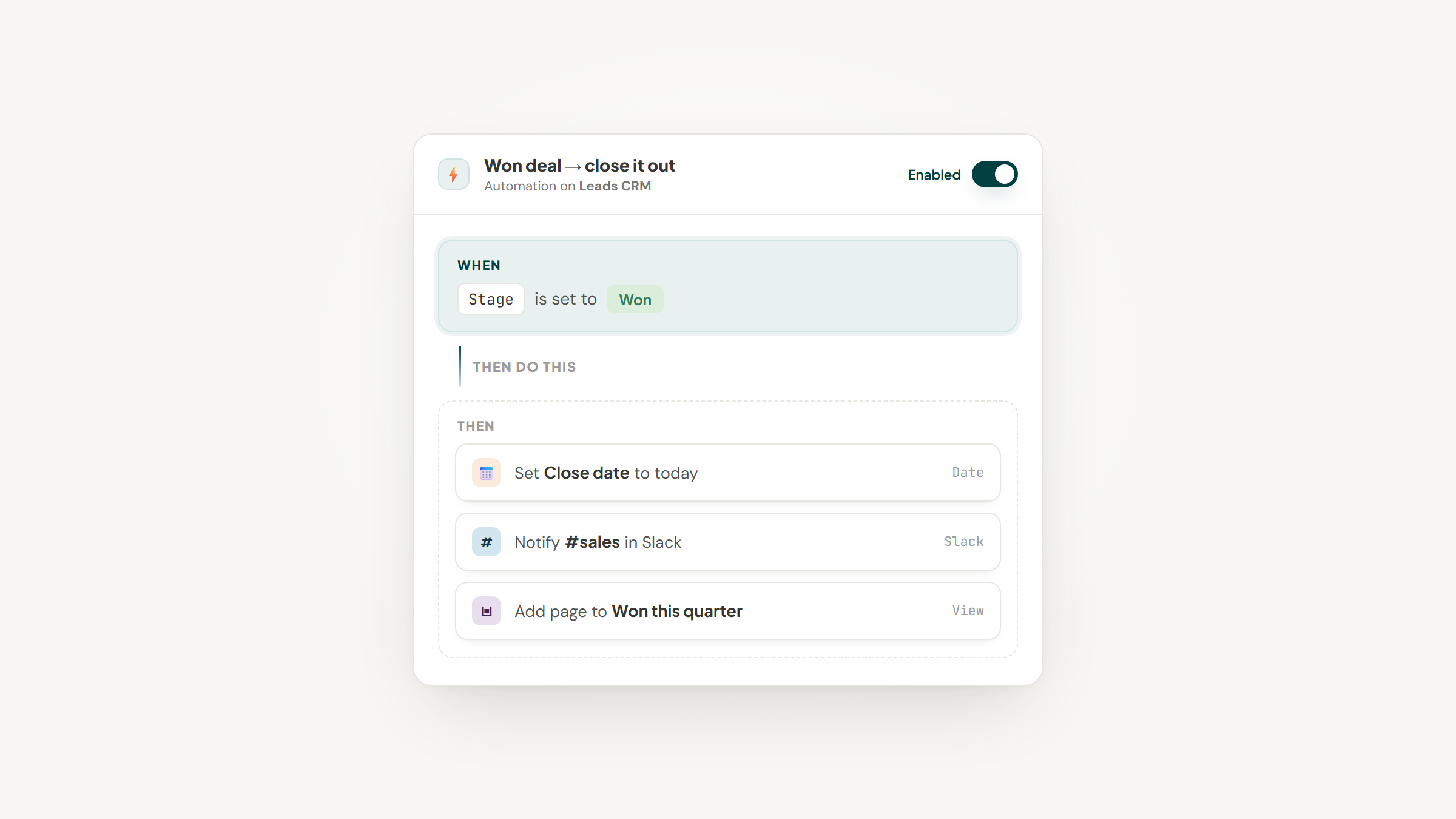
Notion automations are genuinely good at one thing: reacting to changes you've already made in a database. Set a deal to Won, and it can notify someone, stamp a date, create a follow-up page, and fire a webhook, all without you clicking anything.
They're also surrounded by more wrong information than almost any Notion feature. Guides describe a Google Calendar sync that doesn't exist, promise the free plan can do things it can't, and quote automation limits from a version ago.
This guide covers what the feature actually does, exactly what it costs, and the one boundary it can't cross, which happens to be the boundary that matters most if you're tracking leads.
What Notion Automations Actually Are
The Notion automations feature is simpler than its reputation: an automation is a trigger plus an action, scoped to a database. Something changes, and Notion does something about it.
That's the whole model, and it's worth stating plainly because the marketing around "AI automations" muddies it. Automations in Notion are built from three triggers and eight actions. Everything else is combinations.
Triggers fire on a page being added, a property being edited, or on a schedule. Actions edit a property, add a page to a database, edit pages in a database, send a notification, send mail, send a webhook, send a Slack message, or define a variable other actions can reuse.
Note what isn't on either list: anything that happens outside Notion. No trigger watches your browser, your inbox, or a webpage. That constraint is the single most important thing to understand about the feature, and we'll come back to it.
Notion Automations Pricing and the Free Plan
Here's where the guides start lying to you, so these figures came off Notion's pricing page this month.
Plan | Price (annual) | Database automations |
|---|---|---|
Free | $0 | Buttons only. Cannot create or edit |
Plus | $10/seat/mo | Full custom automations |
Business | $20/seat/mo | Same as Plus |
Enterprise | Custom | Same as Plus, plus webhook admin controls |
Read the Business row again, because it's the one that surprises people. Notion's own comparison table says automations on Business are the same as Plus. Business buys you bundled Notion AI, not more automation power. If you're upgrading from Plus to $20 hoping for better automations, you'll get exactly what you already had.
Monthly billing runs higher on both: Plus is $12 and Business $24.
So the honest answer on the Notion automations free plan question is no. Free is buttons only. You can't create a database automation, and you can't edit one.
There's one legitimate workaround, found by a Reddit user rather than documented by Notion. Duplicate a template that already ships with an automation built in, and a free user can run it and edit the properties it touches, just not the automation logic itself. It's a real trick with a real ceiling: you're reusing someone else's trigger-and-action pattern, not building your own.
How to Build One, Step by Step
The click path is short once you know where the entrance is, and it's hidden in plain sight.
From Zero to a Working Automation
Seven steps, and the trap is in step 5 rather than anywhere you would expect.
- Open your database and click the ⚡ icon in the top right, then choose New automation.
- Name it something you'll recognize in six months, because this list gets long.
- Set the scope: the whole database, or just the current view.
- Add a trigger. Pick Page added, Property edited (then choose which property), or Every followed by a frequency for a recurring run.
- If you add more than one trigger, choose whether any or all of them must occur.
- Add one or more actions from the eight available.
- Click Create, then test it with a real record rather than trusting it.
Step 5 has a trap worth knowing. If you set multiple triggers to "all of these," the edits have to land within about a three-second window or the automation silently doesn't fire. Nothing errors. It just doesn't happen, which is a miserable thing to debug.
The recurring trigger has its own rule: it can't be combined with any other trigger type. It's a scheduler, not a condition.
What You Can Actually Automate for Leads
Within a Notion database, a fair amount, and it's genuinely useful for a pipeline.
When a lead's stage changes to Qualified, you can stamp a date property, notify the person who owns it, and create a follow-up task in another database with its properties pre-filled. When a page lands in your leads database, you can set defaults, assign an owner, and message a Slack channel. On a schedule, you can sweep the database weekly and flag anything untouched for 30 days.
The Define variables action is the underrated one. It lets you build a value from the triggering page (a mention, a formula, a combination of properties) and reuse it across the actions in that same automation. That's how people auto-compose titles like a date plus a related company name.
Send mail deserves a caveat: it works only through a linked Gmail account, so you're bound by Gmail's sending limits and nobody else's provider is supported. It can also take up to two minutes to arrive, which is fine for a notification and wrong for anything time-sensitive.
Notion Database Automations and the Webhook Action
The webhook action is the part of the Notion database automations feature that opens Notion up to the rest of your stack, and it's more accessible than most guides suggest.
It's available on any paid plan, not Business-only. It sends an HTTP POST to a URL you specify, with one custom header if you need it. That's enough to trigger a Zap, hit a Make scenario, or call your own endpoint.
The limits are real and worth planning around.
Constraint | Detail |
|---|---|
Plan needed | Any paid plan (Plus and up) |
Method | POST only |
Payload | Properties only. Page body/content can't be sent |
Authentication | None built in. One custom header is your only lever |
Per automation | Max 5 webhook actions |
On failure | The whole automation auto-pauses and needs manual reactivation |
That last row is the one that bites. A webhook endpoint that goes down doesn't just drop a message; it silently pauses the entire automation, including the parts that had nothing to do with the webhook. If you're relying on one in a lead workflow, check it periodically rather than assuming silence means success.
Notion AI Automations, Honestly
The Notion AI automations question has a confusing answer because Notion has shipped several overlapping things.
Notion AI itself is bundled into Business and Enterprise only. Free and Plus get a limited trial. Since May 2025 you can't buy it as a standalone add-on on any plan, which catches out anyone on Plus expecting to bolt it on.
Autofill is a different thing again: a database property feature rather than an automation trigger or action. It can populate a property using AI, summarizing a page or extracting key information. Basic Autofill is included on Business and Enterprise.
Custom Agents are the real AI automation layer, and they're separate from database automations entirely. They run on a trigger or a schedule and complete multi-step work on their own. They're metered: free to try, then $10 per 1,000 monthly Notion credits, sold as an add-on to Business and Enterprise, with no rollover.
So if someone tells you Notion has AI automations, ask which of those three they mean. They cost different money and do different jobs.
Notion Automations Google Calendar Sync: The Honest Answer
This one deserves its own section because the search results are actively misleading.
There is no native sync from Google Calendar into a Notion database. Notion says so itself on its calendar product page: importing Google Calendar events directly into a Notion database is not yet possible. There's no Google Calendar trigger and no Google Calendar action in the automation builder. Check the lists above; nothing there addresses an external calendar.
What does exist is Notion Calendar, a separate free app (formerly Cron) that syncs with Google, Outlook, and iCloud so you can view your Notion database items alongside your calendar events. That's a display layer, not a data pipe. Your calendar events don't become rows.
If you genuinely need calendar events in a database, you need a third-party tool: Zapier or Unito to push a Notion trigger into a Google Calendar action, or a dedicated two-way sync app. That's a real answer with a real cost, and it beats hunting for a native feature that isn't there.
What Notion Automations Cannot Do
Knowing the ceiling saves more time than knowing the features. Four of these five come straight from Notion's own documentation; the recurring-task gap is the exception, and it's the one long-time users complain about most.
- They can't capture anything from outside Notion, because every trigger fires on a change already made inside a database.
- They can't trigger other automations. A page created by one automation won't fire the receiving database's automation, and only a button click can trigger a database automation.
- They can't branch. Multiple triggers and multiple actions, yes, but no if/else logic inside a single automation.
- They can't create recurring tasks natively. The scheduled trigger re-runs an automation; it doesn't spin up next week's task the way a to-do app would.
- They can't be built by guests. Only members with full database access can create them.
A Reddit thread from early 2024 complaining about these limits is still half-accurate, which is itself informative. Notion has since shipped the recurring trigger and the variables action, so some of the original complaints are now stale.
But a comment from May 2025 still lands: automations only work for very simple things, and making subtasks inherit properties from a parent task is close to impossible despite sounding trivial. That's anecdotal, and it matches the documented lack of branching.
The Gap That Matters for Leads
Go back to the first limit, because it's the one that decides whether automations solve your actual problem.
An automation fires on a change already made in Notion. Which means something has to make that change first. If you're saving leads, that something is you, in a tab, copying a name and pasting it into a row. Automation begins after the typing. It can do a great deal once the row exists, and nothing at all to help the row exist.
That gap has a measurable price. Research collected by the American Psychological Association puts the cost of switching between tasks as high as 40% of productive time, and moving one lead from a browser tab into a database is several switches, not one.
Lead to Notion exists to handle that first step, and it's complementary to automations rather than a replacement for them. It's a free Chrome extension: a side panel that opens beside whatever page you're already reading.
You type a name and a website; it fills the rest, checks the database for that company before writing anything, and stamps the note with today's date. Ten seconds a lead, give or take.
Then your automations take over: the row exists, so the trigger fires, the stage gets stamped, the notification goes out. Capture and automation are two different jobs, and Notion only ships one of them.
It costs nothing, asks for no account, runs entirely on your own machine with your token never leaving it, and the source is public. The honest friction: no Web Store listing yet, so it's a ZIP plus Developer mode plus Load unpacked, and a handful of database fields have to be mapped before the first save works. Our setup guide walks through both.
When to Reach for an External Tool
Notion's automations are the right tool right up until they aren't, and the boundary is fairly crisp.
Stay native when the work is a simple reaction inside one workspace: stamp a date, notify a person, create a linked page, fire a single webhook. That's most lead-pipeline hygiene, and it costs you nothing beyond the Plus seat.
Go external when you need branching logic, when you're syncing with another system, when you need calendar or email beyond a linked Gmail account, or when one automation needs to set off another. Zapier, Make, and n8n all handle those, and Notion's own limits push you there rather than pretending otherwise.
There's a wider point worth keeping in view. The McKinsey Global Institute estimates that current technology could in theory automate around 57% of US work hours.
That's a theoretical ceiling, not a promise, and Notion's database automations sit nowhere near it. Treat the 57% as a reason to automate the boring parts of your pipeline, not as a claim that any one tool gets you there.
Where to Start
Pick the single most repetitive thing you do in your leads database this week. Probably stamping a date, probably notifying someone, probably creating a follow-up. Automate that one thing on a Plus seat and see whether it holds for two weeks.
Then be honest about where the time actually goes. If most of it is spent moving information into Notion rather than reacting to information already there, automations aren't your bottleneck and no amount of trigger-tuning will change that.
That's the part our extension handles, free.
If the limits above have you wondering whether Notion is the right home for a pipeline at all, that's a fair question: Notion vs Monday and Notion vs ClickUp answer it honestly, including where they win. If your CRM lives elsewhere entirely, a Notion HubSpot integration is its own puzzle. More on our blog.
Frequently asked questions
No. Notion's pricing table lists Free as "buttons only," meaning you cannot create or edit a database automation. Full custom automations start on Plus at $10 per seat per month billed annually. There's one community workaround: duplicate a template that already contains an automation, and a free user can run it and edit the properties it touches, though not the automation's logic. That's a real trick, not an official feature.
Turn Notion into your CRM
Lead to Notion is a free Chrome extension. Save leads to your Notion database in one click, add notes, and track your pipeline. No account, no server.